Announcing candidate interview feedback
A reviewed report will turn completed interview answers into specific strengths, useful practice, and a development direction candidates can take away.

Candidates can leave a detailed interview knowing little about what they did well or where to focus next. Candidate interview feedback will turn recorded answers into specific strengths and practical development guidance.
A member of the hiring team will review the report before sharing it. Staff will open it from the candidate profile; the candidate will read it on a separate page through a temporary link.
Start with the completed interview
From a candidate profile, a team member will select Generate interview feedback. The drawer will open the latest saved report or start preparing one if it has not been made yet. Staff can request a new report while the earlier version stays readable.
The report will use the candidate’s saved answers from a completed interview. If those answers are missing, feedback will wait until the interview record is ready.
Show strengths before development advice
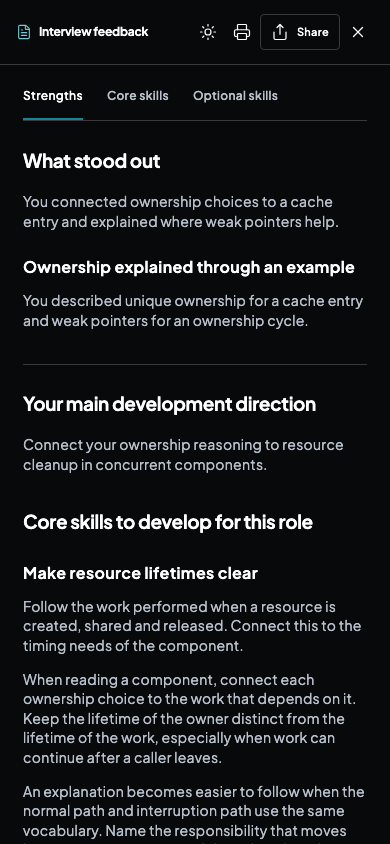
The report will begin with what stood out in the candidate’s answers. It will then name a main development direction, followed by skills to work on and practical next steps.
The sample report shown here follows a candidate for an embedded software role. It describes how they explained ownership through a cache example, then suggests making resource cleanup responsibilities clearer during a component review.
Separate core skills from optional ones
Core skills will cover development areas tied to the role. Each one will include something the candidate can practice and a description of what progress could look like. Optional skills will have their own section for areas the candidate may explore later; that section will disappear when there is nothing useful to add.
A short closing section will give the reader a practical direction. Internal rankings, scores, and hiring decisions will stay outside the candidate report.
Review the report before sharing
Staff will read the report in a drawer beside the candidate profile. Section links will take them to strengths, core skills, and optional skills. They can expand the drawer on desktop, switch between light and dark reading themes, or print the report.
Creating a share link will require a team member to confirm that they have reviewed the content. Generating another report will create a new version without changing the version a candidate has already received.
Give the candidate a link with an end date
After review, staff will choose whether the link lasts one day, seven days, or thirty days. They can copy it, open the candidate view themselves, and revoke access early. The sharing panel will show which links remain active and which have expired or been revoked.
Candidates will read the report on its own page, with section links and a print control. When a link expires or is revoked, the page will stop showing the report and ask the candidate to request a new link from the person who shared it.