Announcing Noa Agent: hiring questions in one conversation
Noa Agent will answer hiring questions in your workspace, save private conversations, and make supported changes when you enable Write access.

Preparing for one interview can mean checking a role, finding its candidates, and deciding what to ask next. Those details sit on different screens. Noa Agent will give signed-in hiring teams one place to ask about the workspace they have selected.
Answers will appear as they are written, with names and links back to relevant records. The conversation will stay with your account and workspace so you can return to it later.
Start with a question
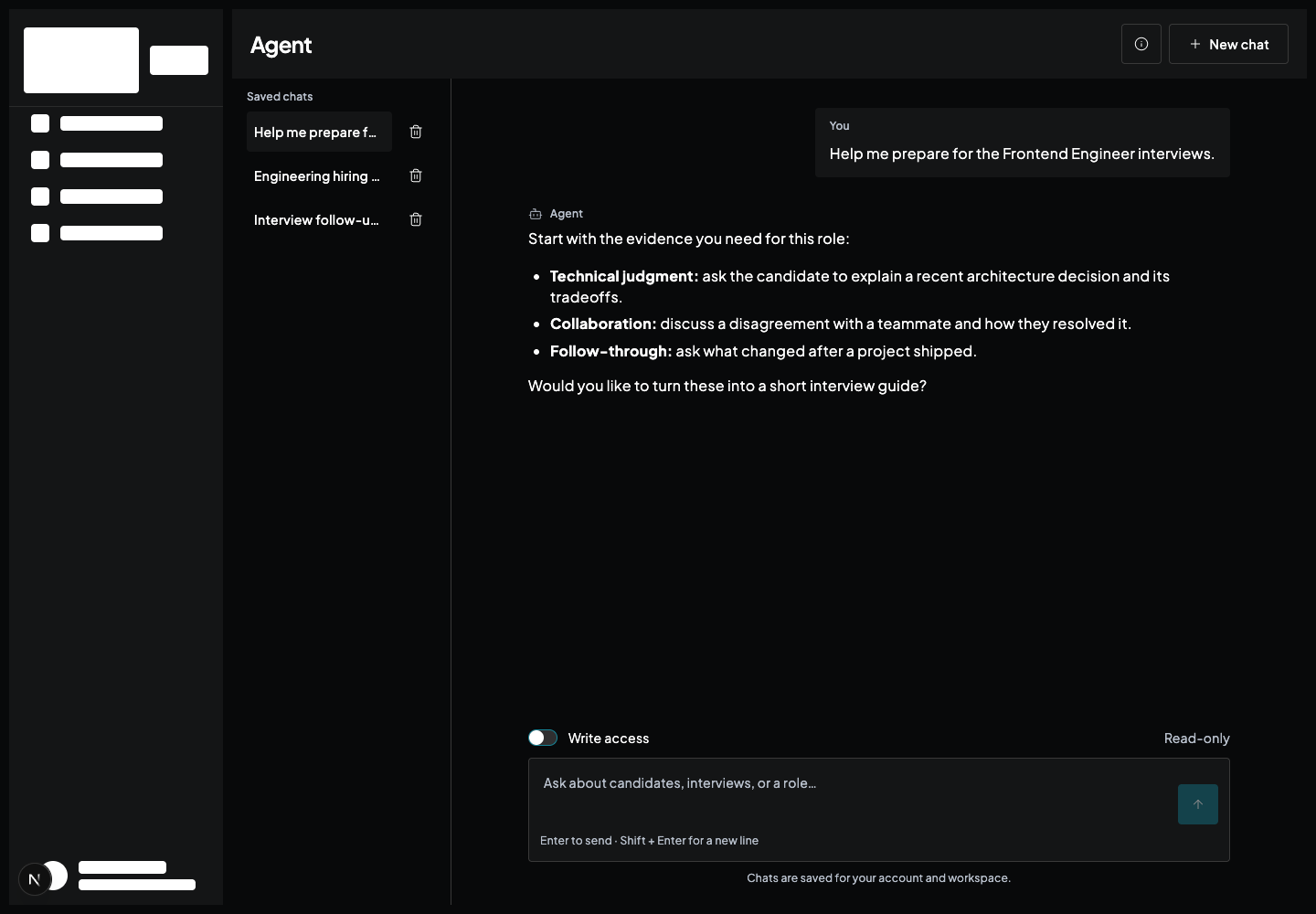
Open Agent from the main menu. You can type a question or choose a starting prompt such as Prepare interview questions, Explore open roles, or Review candidates. A prompt fills the message box for you to edit before sending.
Ask, “Which roles are open?” or “Who are the candidates for the Frontend Engineer role, and what is their current status?” Agent will look in the selected workspace and respond with readable names and statuses. It can also find interview scenarios and check whether a candidate report exists.
For interview preparation, tell Agent the requirements you want to test and ask it to draft follow-up questions. It will work from the details you provide in the chat. Its workspace reads cover report availability, while report contents and saved interview transcripts stay in their own views.
Pick up where you left off
Saved chats will stay private to your account in the selected workspace. Open an earlier conversation from the list, load older messages, and continue from there. New chat will start a separate thread while keeping the previous one.
You will be able to delete a chat after confirming the choice. In a long conversation, Agent will summarize older exchanges for its working context while keeping the full transcript available for you to read.
Choose when Agent can change a record
Each new chat will begin in Read-only mode. When you need a change, switch on Write access above the message box and ask for a specific action. Agent can create a role, add a candidate to an existing role, create an interview scenario, change a role’s status, or remove a role from active lists.
For example, you could ask it to create a Product Designer role with accessibility as a required skill. To add a candidate, provide their name, email, and the role. If more than one record matches a name, Agent should ask which one you mean before changing either.
Write access will still follow your workspace permissions and the application’s validation rules. Once enabled, a supported change that you explicitly request can run without another confirmation dialog. A scenario will save its title and description; questions drafted in chat will remain in the conversation. You can turn the switch off when you return to asking questions.
Check an interrupted change before repeating it
You can stop a response, but stopping will not undo a change that already finished. If the response ends before Agent can confirm the result, Write access will turn off and Agent will not submit the change again automatically.
Check the relevant role or candidate page before making the request again so you do not create a duplicate record or edit it twice.